

Game Dev First Step: Drawing Your First Square
Use C++ and SDL to create the 'Hello World' of game development.

Drawing a shape on screen is the first step in every game developer’s journey.
It’s a right of passage.
I’t’s the ‘Hello World’ of game creation: the first step in becoming a game dev legend.
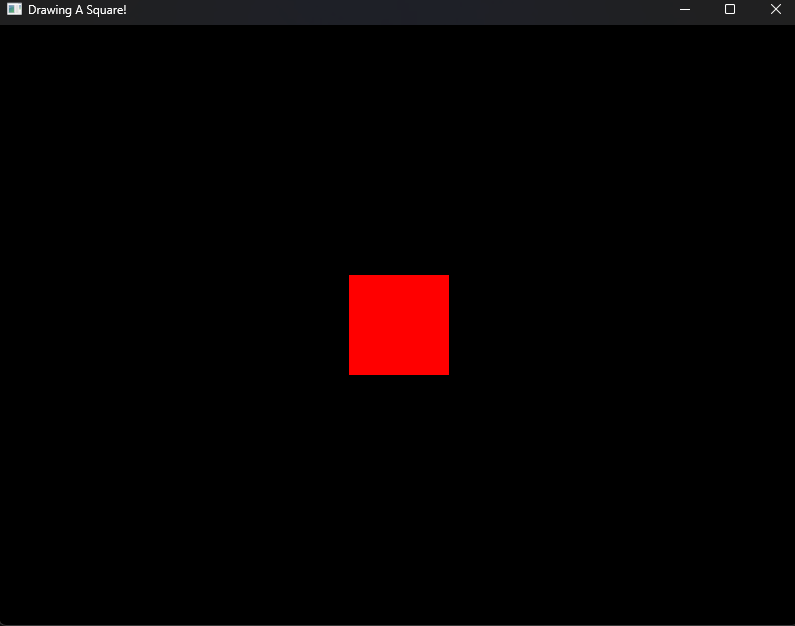
In this guide, we’ll go over how to initialize SDL, how to check for errors if something bad occured during initialization, how to create a window and a renderer, and how to use C++ to add the logic needed to draw a square on screen.
By the end of this guide you’ll have your first taste on game creation.
And even if you’re a seasoned dev who has used Unity and Unreal for decades, I’m sure you’ll learn a thing or two on how to create games closer to the metal.
Let’s get started.
Reminder: you can support this Substack to fix gaming, and get tons of members-only content for a few dollars per month:
Full-length articles every week.
Starting threads in the community chat.
Weekly tutorials on game dev and game design.
The entire archive of game design, game dev and marketing breakdown.
Note: This tutorial assumes you already set up your game dev environment with C++, SDL, Visual Studio Code, Clang, CMake and Ninja.
If you haven’t, check the step-by-step at the end of the article, in the appendix section.
Initializing Video
Let’s start a new project.
Create in your terminal a new directory or folder.
Let’s call it FirstSquare.
Open Visual Studio Code and add a main.cpp file directly inside the FirstSquare folder.
We’ll start by including the SDL3 library.
#include <SDL3/SDL.h>Every program in C++ needs to have a main function that serves at the entry point to the program. By convention, it should return an integer value (a whole number).
So, we declare
int main()
{

}
Once we compile and build the entire project, the main function will be the first function to be called by your operating system’s runtime.
But how will our program let your computer know that SDL will be used to draw a square on screen? That’s right, we need to initialize SDL and the components we will use.
We initialize SDL and the components we need by calling the library’s SDL_Init() function.
Let’s add the following line inside the main block:
SDL_Init(SDL_INIT_VIDEO);SDL_Init() is a function that can receive different flags as arguments.
In this case SDL_INIT_VIDEO is a flag that’s part of the SDL library.
It tells SDL to initialize the video component.
Now, initializing SDL and its components may generate errors if something went wrong along the process. That’s why it’s always a good idea to check for any errors during initialization and handle them gracefully.
To do that, we’ll use an if conditional and a call to the SDL_Log() function that allows us to generate messages if something goes haywire.
Replace SDL_Init(SDL_INIT_VIDEO); with
If (!SDL_Init(SDL_INIT_VIDEO))
{
    SDL_Log("Failed to initialize video! %s", SDL_GetError());
    return 1;
}
Your code so far should look like this:
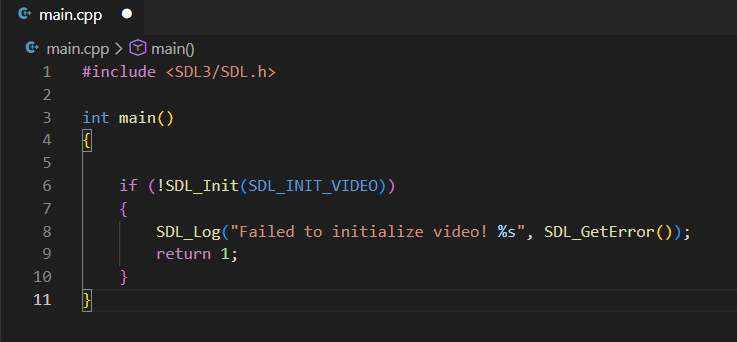
The ! before SDL_Init(SDL_INIT_VIDEO) is a NOT operator. Meaning, there wasn’t a proper initialization of the video component.
The whole conditional statement means “If SDL_INIT WAS NOT propertly initialized then run the code inside the if block”.
Creating a Window and Renderer
Now we need to create the window that will contain our game and the renderer that will help us draw shapes on the window.
We first declare two variables. They’re pointers of type SDL_Window and SDL_Renderer. Don’t worry too much about pointers for new. Just keep in mind they hold references to address in memory, and are great to speed up memory management in programs. That’s one of the many reasons why C++ is king in game development.
SDL_Window *window = nullptr;
SDL_Renderer *renderer = nullptr;
They’ve been initialized to nullptr because they haven’t been populated with any proper values that will reference an actual window or renderer.
To do that, we need to call the function SDL_CreateWindowAndRenderer();
We do it this way:
SDL_CreateWindowAndRenderer("Drawing A Square!", 800, 600,
 SDL_WINDOW_RESIZABLE | SDL_WINDOW_HIGH_PIXEL_DENSITY, &window, &renderer);
It looks like a long call! But don’t worry, let’s break it down by arguments.
“Drawing a Square!”: The SDL_CreateWindowAndRenderer() function first expects a C-type string with the title of the window.
800 and 600: Those are the width and height in pixels of the window, respectively.
SDL_WINDOW_RESIZABLE | SDL_WINDOW_HIGH_PIXEL_DENSITY are window option flags. We can add more option flags with the pipe | operator which is also known as a “bitwise OR” operator.
&window, &renderer are references to our pointers. Going deep into how SDL_CreateWindowAndRenderer initializes is not in the scope of this guide, but it’s an interesting subject involving **pointers. I’ll cover it an upcoming article.
Now, we need to check if there weren’t any errors while creeating a window or renderer. We add a conditional to check if window or renderer return a false value. If any of them are false or null, that means they weren’t properly created.
   if (!window || !renderer) {
        SDL_Log("Failed to initialize window/renderer: %s", SDL_GetError());
        SDL_Quit();
        return 1;
    }
The || is the “boolean OR” operator. While the | operator is the “bitwise OR” operator because it works with binary values, the || operator works with booleans (true or false).
Drawing a Square
We’ll now use the renderer to draw a square on screen.
A very simple rendering pipeline in SDL looks like this:
Set a render color
Clear the screen to prepare it for drawing.
Set the render color of a shape.
Create the shape.
Paint the shape with the render color.
Present the results on screen.
Add the following code after we checked the window and renderer were properly created:
SDL_SetRenderDrawColor(renderer, 0, 0, 0, 255);
SDL_RenderClear(renderer);

SDL_SetRenderDrawColor(renderer, 255, 0, 0, 255);
SDL_FRect square = {350.0f, 250.0f, 100.0f, 100.0f);
SDL_RenderFillRect(renderer, &square);

SDL_RenderPresent(renderer);
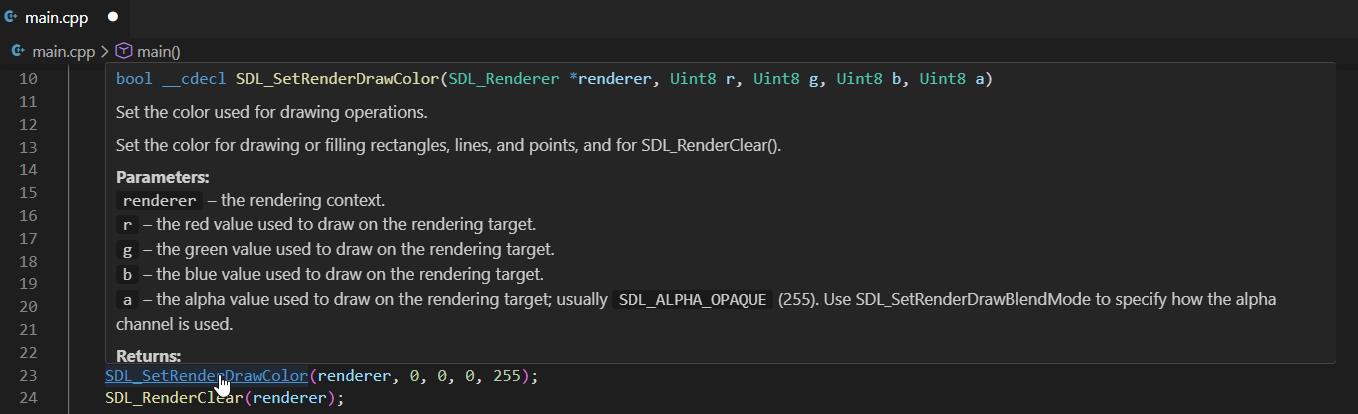
Try making sense out of it based on the function calls.
I highly encourage you to check the intellisense documentation of each call by hovering over it in Visual Studio Code (you must have the C/C++ extension installed).
A note on RGBA
Here’s some help on the numbers you see inside the calls.
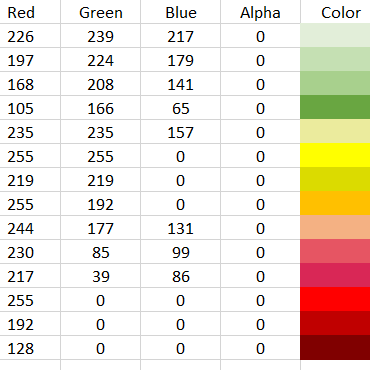
Monitors and screens use a color system called the RBGA system. It may sound intimidating, but it isn’t.
RGBA means Red, Green, Blue, Alpha. Alpha is an transparency/opacity value.
Since RGBA systems are based on the hexadecimal system using 4 bytes to represent colors, it means the values for Red, Green, Blue and Alpha can go from 0 to 255. I’ll write an article on the reasons behind this.
So, a RGBA color that looks like this (255, 0, 0, 255), means it has 255 Red, 0 green, 0, blue, and 255 fully visible alpha… the reddest of reds.
RGBA is additive by nature, so (255, 255, 255, 255) means 255 Red, 255 Green, 255 Blue and 255 alpha which generates a solid white.
Total black would be RGBA(0, 0, 0, 255).
Why 255 in alpha? Because RGBA(0, 0, 0, 0) would be totally transparent, and not solid black.
Cleaning Up
If you try building and running the code so far, you may see a window that immediately closes. We need to tell your computer to wait for a couple of seconds before closing our game window.
To do that we use the function SDL_Delay(). It expects a value in miliseconds.
Add this line to your code after the rendering lines:
SDL_Delay(5000);It means the window will remain open for 5 seconds before closing. Remember, the value is in miliseconds.
Now we need to clean up and free all the resources we used to avoid any memory leaks.
To do that we need to call functions to destroy the window and renderer since we will no longer be using them.
And we also remove any resources SDL may be using.
Add the following lines after calling SDL_Delay():
SDL_DestroyRenderer(renderer);
SDL_DestroyWindow(window);
SDL_Quit();
Demo
Let's now build and run. You should see:
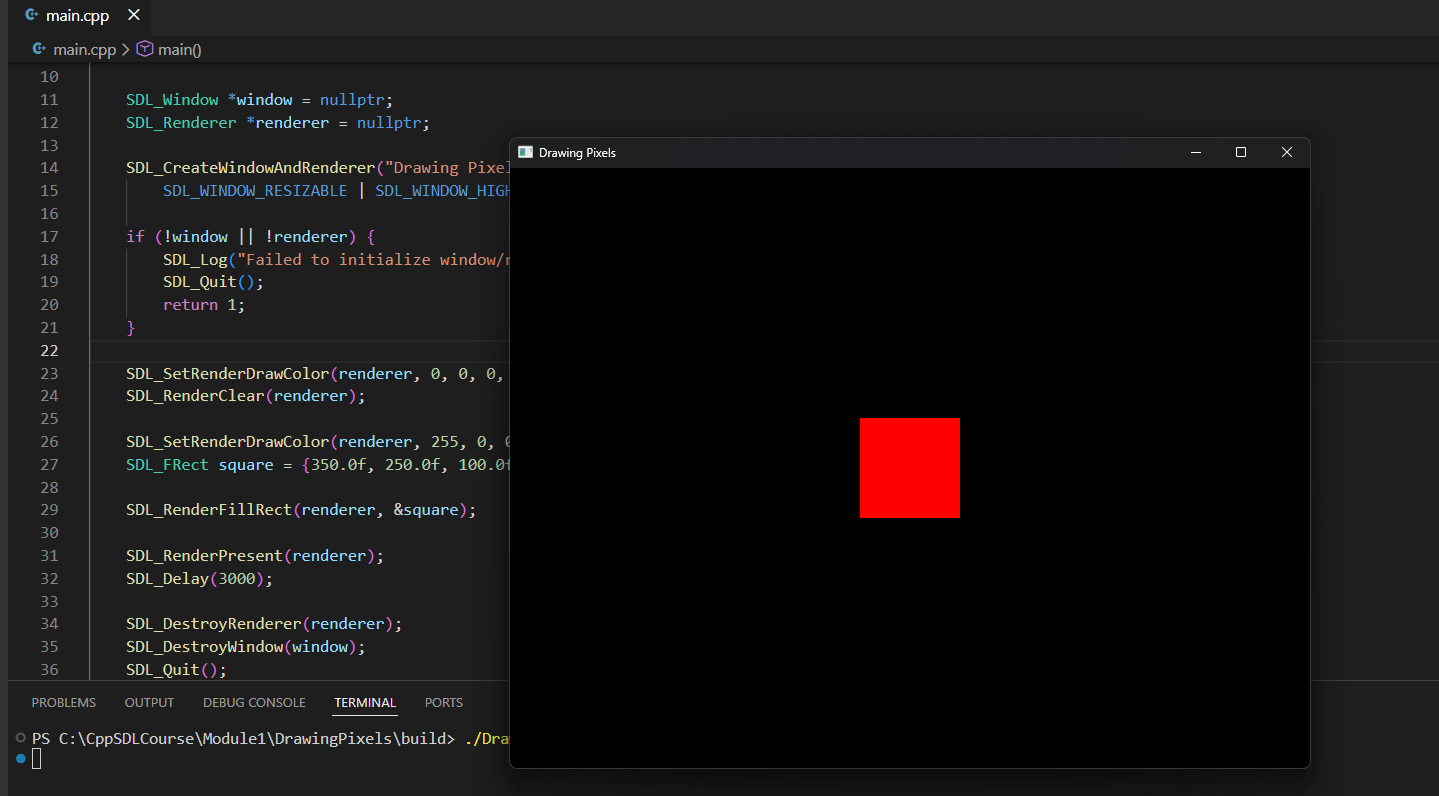
Congrats! You just drew your first square on screen.
You’re on your way to become the next legendary dev!
If you got stuck, or have any questions about this guide, feel free to post them on the comments section, chat or directly on X via DMs.
Exercises
Try adding a second square. Change its color.
Play around with positions. Can you place a square in each corner of the window?
Check SDL’s official documentation for SDL_Init(). Check the flags. What did you find interesting? Share in the comments section or chat!
Join Today!
If you enjoyed this guide, and want to learn how to fix gaming while building your own game studio make sure to subscribe to my Substack.
You’ll learn more about the game industry, game design, how to build an audience online, create games, and sell them.
Free subscribers get ocasional articles about everything happening in gaming from a game dev and marketing perspective, access to the community chat, plus a monthly list of must-play gems.
Paid subscribers get deep-dive articles and guides on game dev, marketing and how to grow your social media presence. You can start threads on the community chat and get exclusive game design analysis of the best retro and indie titles.
And much, much more.
Subscribe today!
Appendix and Resources
C++ and SDL Game Dev Environment Setup Guide
Reminder: you can support this Substack to fix gaming, and get tons of members-only content for a few dollars per month:
Full-length articles every week.
Starting threads in the community chat.
Weekly tutorials on game dev and game design.
The entire archive of game design, game dev and marketing breakdown.