

Make Things Move! Your First Game Loop With C++ and SDL.

Games are loops.
If you think about how animation works, at its core, it’s just like a flipbook. Each page in the flipbook represents a single frame of animation. When we thumb through it, those static frames come alive.

The idea behind a game loop is the same. Just add two extra steps:
Check if there’s any input from the player.
Update variables like the player’s position, check for collisions or destroy enemies.
And that’s it!
You now know more than 90% of people wasting their time learning commercial engines like Unity and Unreal without focusing on fundamentals.
In this guide we’ll implement a simple game loop where you can move a square around the screen. The loop will use a set frame rate. You’ll become a master at game loops in no time.
Let’s get started.
Reminder: you can support this Substack to fix gaming, and get tons of members-only content for a few dollars per month:
Full-length articles every week.
Starting threads in the community chat.
Weekly tutorials on game dev and game design.
The entire archive of game design, game dev and marketing breakdown.
Initialize
Create a new folder, add a CMakeLists.txt and main.cpp text files.
This tutorial assumes you already went over the C++/SDL game dev environment set up guide and the Drawing Your First Square tutorial. If you haven’t, don’t worry. You can find them in the Appendix section at the bottom of this guide.
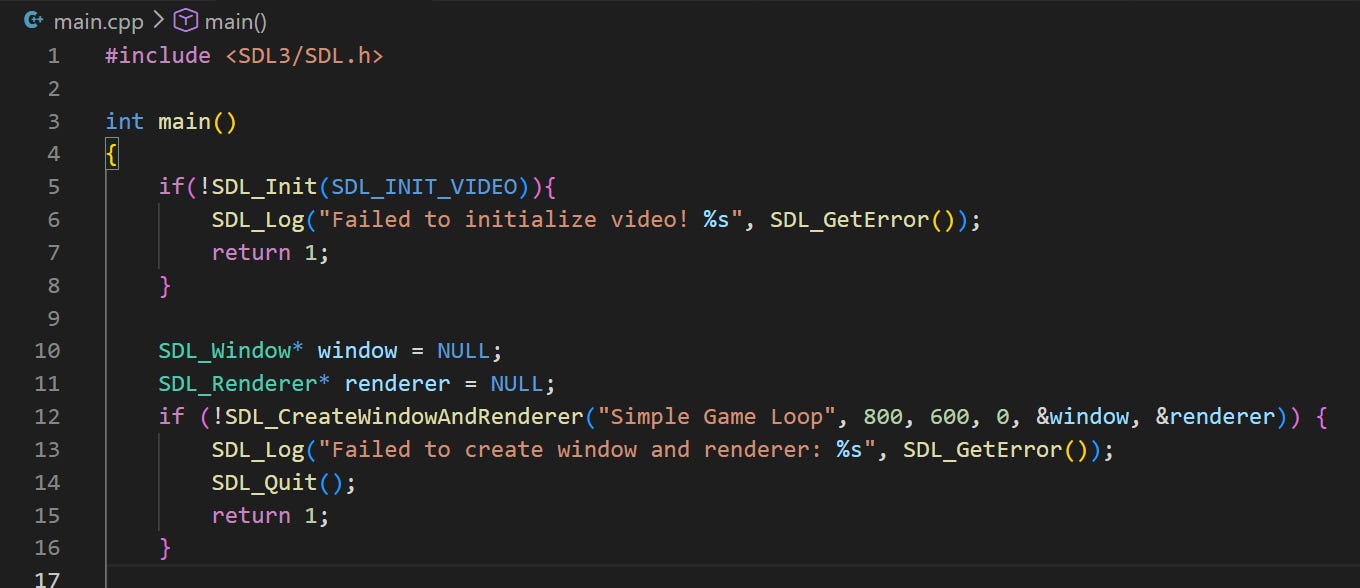
Add the following code in the main.cpp file to inialize SDL’s video module and create a window and renderer.
Set Up Our Square
To create a square, we just need its x position, y position, width and height.
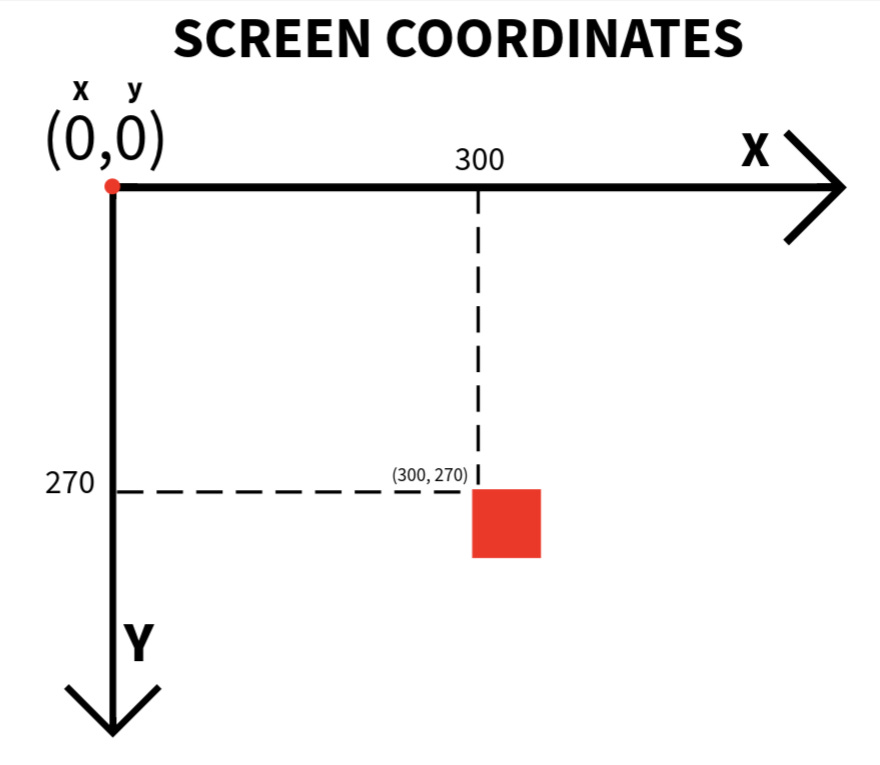
The screen coordinates in SDL start at the top left corner (0,0), being x = 0 and y = 0. They increase as you move to the right on the horizontal x axis, and to the bottom on the vertical y axis.
So, the position of the red square below would be x = 300 and y = 270 or (300, 270).
Add the following code to define our square’s initial x and y positions, along with the square size.
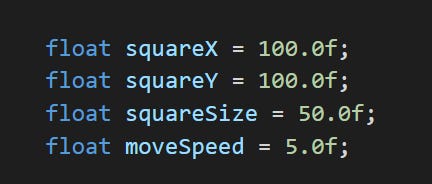
We’re also declaring a movement speed which are the amount of pixels we want our square to move per frame.
All the values are declared as floats (numbers with decimal fraction) because SDL3 supports subpixel accuracy when dealing with movement.
Initialize Window Clamping Variables
When moving our square, we don’t want it to disappear beyond the game window.
Let’s add some logic to clamp it.
SDL provides a useful function called SDL_GetWindowSize to get our window’s width and height, 800 and 600 pixels respectively.

We’re using static_cast<float> to convert integer values to float values.
Don’t worry about the rest of the campling logic for now, we’ll cover it later.
Movement Basics
We need to create variables to keep track on which direction the square is moving.
Booleans are great to capture whether the square is currently moving in a particular direction or not.
Add the following boolean variables (also known as flags):
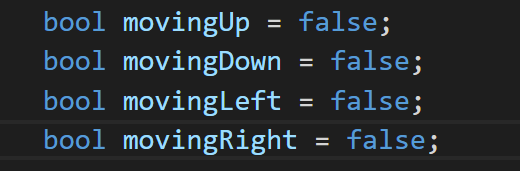
They’ll be set to true when the associated key is held down.
Game Loop Setup
A game loop consists of four essential steps:
Handle any input or events
Update the game’s variable values (state)
Render graphics
Manage frame rate for consistency
We’ll target a 60 frames per second rate. This means every frame will last for around 16.67 milliseconds.
The math is simple: 60 frames, each lasting 16.67 milliseconds, equals 1000 milliseconds, which is the same as 1 second.
Let’s add a boolean variable to keep track of when our game is running. That means the loop will run per frame while running is set to true. If running is set to false, that means the game loop won’t run.

Before writing the logic of the game loop, we also need to make sure to initialize the variable that will hold our target frame time in milliseconds. Since the target frame rate is 60 FPS, we’ll divide 1000 milliseconds by 60 and assign the result to a constant.

Let’s write the first line of our while game loop.
while(running)
{
}
We need to check for the time it takes the loop to perform one cycle. Our first line inside the loop is going to retrieve the start time of the frame. SDL provides a function to get a high resolution timer called SDL_GetPerformanceCounter().

Note: If you’ve had experience working with SDL before or if you’ve read some other tutorials, you’ll see that many use SDL_GetTicks(). That’s an excellent function for your projects, but for this guide I decided to use SDL_GetPerformanceCounter() to illustrate how a timer closer to the cpu cycles works.
Checking for Events
Our game loop needs to check for any inputs from the player: a button press, a touch action, or a mouse click, for example. SDL implements an event queue. The idea is to poll the queue for any events and react accordingly. We loop until the queue is empty.
We first create an object of type SDL_Event and create a while loop to traverse over the queue’s events.
while(SDL_PollEvent(&event)) {

}
Inside the while loop we will check for all the event types. SDL allows us to handle different events like closing the game window (SDL_EVENT_QUIT), pressing a key (SDL_EVENT_KEY_DOWN) or releasing a key (SDL_EVENT_KEY_UP).
We’ll use a switch block to check and handle different event types.
           switch (event.type) {
                case SDL_EVENT_QUIT:
                    // User closed the window or pressed quit.
                    running = false;
                    break;
                case SDL_EVENT_KEY_DOWN:
                    // Key pressed: Set movement flags.
                    // We check scancode for hardware-independent keys.
                    switch (event.key.scancode) {
                        case SDL_SCANCODE_W:
                            movingUp = true;
                            break;
                        case SDL_SCANCODE_S:
                            movingDown = true;
                            break;
                        case SDL_SCANCODE_A:
                            movingLeft = true;
                            break;
                        case SDL_SCANCODE_D:
                            movingRight = true;
                            break;
                        default:
                            break;
                    }
                    break;
                case SDL_EVENT_KEY_UP:
                    // Key released: Clear movement flags.
                    switch (event.key.scancode) {
                        case SDL_SCANCODE_W:
                            movingUp = false;
                            break;
                        case SDL_SCANCODE_S:
                            movingDown = false;
                            break;
                        case SDL_SCANCODE_A:
                            movingLeft = false;
                            break;
                        case SDL_SCANCODE_D:
                            movingRight = false;
                            break;
                        default:
                            break;
                    }
                    break;
                default:
                    break;
            }
Notice how we update the value of the movement flags under the conditions inside the SDL_EVENT_KEY_DOWN event.
Check the appendix for a link to all the events and scancodes SDL handles.
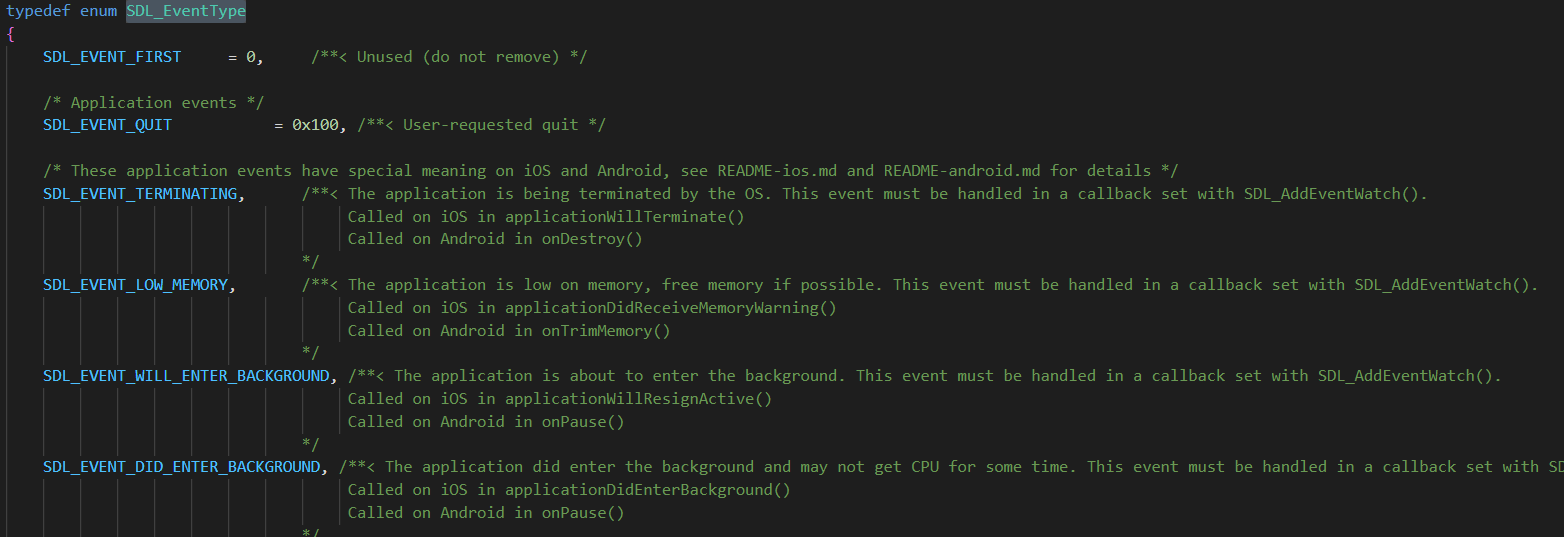
Pro tip: You can press F12 on any of the events in the code. It will take you to the definition of the SDL_EventType enum inside the SDL_events.h header. That’s where all the different event types are defined.
Updating Game State
Since the loop already checked for any inputs from the events queue, we can now update the game state. This means updating the value of the variables associated to moving our square.
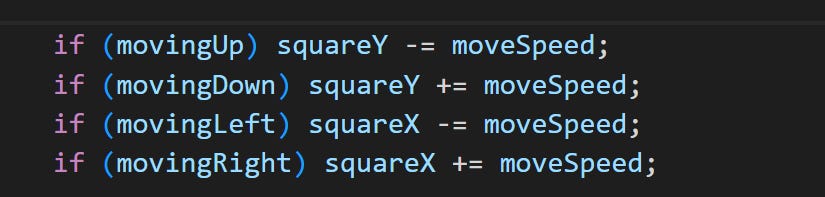
If movingUp was set to true based on the user input (pressing the W key), the square will move up. Notice the line is if (movingUp) squareY -= moveSpeed which is the same as if (movingUp) squareY = squareY - moveSpeed. Remember that screen cordinates on the vertical y-axis increase when moving down the screen. In this case the value is negative because we’re moving up along the vertical y-axis.
We’ll also implement the long overdue clamping logic by adding the following lines:

Experiment adding and removing these lines once we complete our first game loop. Try to figure out why these lines were defined that way. Let me know if you have questions in the comments section.
Render the frame
Remember that SDL first draws to a back video buffer that we will need to manually present to the front. That’s why we first need to set our background color and clear anything that could be in the renderer.

Let’s know set the renderer color to red, create our square and fill it with red:

Now that we drew to the back buffer, let’s present it to the front:

Are we done yet? Almost!
Let’s just calculate how much time passed for this frame and stabilize it if was faster than the target frame time. We do that by delaying the frame.

You may be asking why are we dividing the difference between frameEnd and frameStart by the performance frequency. That’s because frameEnd and frameStart are cpu cycles, and we need to convert them to milliseconds.
Cleanup
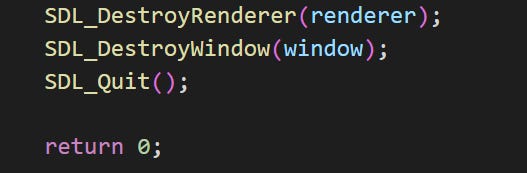
The only code we need to add outside the game loop is clean up that will run as soon as the SDL_Event_Quit event hits and sets the running flag to false.
We’ll destroy the references to the window and render to free up their memory, while finalizing all SDL subsystems with SDL_Quit().
The entire code should look like this. I added comments that I thought would be helpful to guide you step by step:
| #include <SDL3/SDL.h> | |
| int main() | |
| { | |
| if(!SDL_Init(SDL_INIT_VIDEO)){ | |
| SDL_Log("Failed to initialize video! %s", SDL_GetError()); | |
| return 1; | |
| } | |
| // Step 1: Create a window and renderer using SDL_CreateWindowAndRenderer. | |
| // This function combines window and renderer creation into a single call for convenience. | |
| // It returns true on success, false on failure, setting window and renderer pointers accordingly. | |
| SDL_Window* window = NULL; | |
| SDL_Renderer* renderer = NULL; | |
| if (!SDL_CreateWindowAndRenderer("Simple Game Loop", 800, 600, 0, &window, &renderer)) { | |
| SDL_Log("Failed to create window and renderer: %s", SDL_GetError()); | |
| SDL_Quit(); | |
| return 1; | |
| } | |
| // Step 2: Set up game variables. | |
| // We'll have a red square that can be moved with arrow keys. | |
| // Position and size of the square. Using floats for position to allow subpixel precision. | |
| float squareX = 100.0f; | |
| float squareY = 100.0f; | |
| float squareSize = 50.0f; | |
| float moveSpeed = 5.0f; // Pixels to move per frame. | |
| // Get window dimensions as floats for clamping. | |
| int windowWidthInt, windowHeightInt; | |
| SDL_GetWindowSize(window, &windowWidthInt, &windowHeightInt); | |
| float windowWidth = static_cast<float>(windowWidthInt); | |
| float windowHeight = static_cast<float>(windowHeightInt); | |
| // Movement flags (true when key is held down). | |
| bool movingUp = false; | |
| bool movingDown = false; | |
| bool movingLeft = false; | |
| bool movingRight = false; | |
| // Step 3: Game loop setup. | |
| // A game loop typically runs continuously until the user quits. | |
| // It consists of: | |
| // - Handling input/events. | |
| // - Updating game state (e.g., moving objects). | |
| // - Rendering graphics. | |
| // - Managing frame rate for consistency. | |
| // | |
| // For stable frame rates, we'll target 60 FPS (frames per second). | |
| // This means each frame should take about 16.67 ms (1000 ms / 60). | |
| // We'll measure time spent on the frame and delay if it's too fast. | |
| bool running = true; | |
| const float targetFrameTimeMS = 1000.0f / 60.0f; // ~16.67 ms for 60 FPS. | |
| while (running) { | |
| // Measure start time for this frame (using high-performance counter). | |
| Uint64 frameStart = SDL_GetPerformanceCounter(); | |
| // Step 4: Poll for events. | |
| // SDL_PollEvent checks the event queue and processes one event at a time. | |
| // We loop until the queue is empty. | |
| // Common events: quit (window close), key presses/releases. | |
| // Comments: Polling events is crucial to handle user input and system messages. | |
| // Without this, the window might become unresponsive. | |
| // We use SDL_Event to store the event data. | |
| SDL_Event event; | |
| while (SDL_PollEvent(&event)) { | |
| switch (event.type) { | |
| case SDL_EVENT_QUIT: | |
| // User closed the window or pressed quit. | |
| running = false; | |
| break; | |
| case SDL_EVENT_KEY_DOWN: | |
| // Key pressed: Set movement flags. | |
| // We check scancode for hardware-independent keys. | |
| switch (event.key.scancode) { | |
| case SDL_SCANCODE_W: | |
| movingUp = true; | |
| break; | |
| case SDL_SCANCODE_S: | |
| movingDown = true; | |
| break; | |
| case SDL_SCANCODE_A: | |
| movingLeft = true; | |
| break; | |
| case SDL_SCANCODE_D: | |
| movingRight = true; | |
| break; | |
| default: | |
| break; | |
| } | |
| break; | |
| case SDL_EVENT_KEY_UP: | |
| // Key released: Clear movement flags. | |
| switch (event.key.scancode) { | |
| case SDL_SCANCODE_W: | |
| movingUp = false; | |
| break; | |
| case SDL_SCANCODE_S: | |
| movingDown = false; | |
| break; | |
| case SDL_SCANCODE_A: | |
| movingLeft = false; | |
| break; | |
| case SDL_SCANCODE_D: | |
| movingRight = false; | |
| break; | |
| default: | |
| break; | |
| } | |
| break; | |
| default: | |
| break; | |
| } | |
| } | |
| // Step 5: Update game state. | |
| // Apply movement based on flags. | |
| // This happens every frame, so holding a key moves continuously. | |
| // We also clamp position to stay within window bounds. | |
| if (movingUp) squareY -= moveSpeed; | |
| if (movingDown) squareY += moveSpeed; | |
| if (movingLeft) squareX -= moveSpeed; | |
| if (movingRight) squareX += moveSpeed; | |
| // Clamp to window (prevent going off-screen). | |
| if (squareX < 0.0f) squareX = 0.0f; | |
| if (squareY < 0.0f) squareY = 0.0f; | |
| if (squareX + squareSize > windowWidth) squareX = windowWidth - squareSize; | |
| if (squareY + squareSize > windowHeight) squareY = windowHeight - squareSize; | |
| // Step 6: Render the frame. | |
| // Clear the screen to black. | |
| SDL_SetRenderDrawColor(renderer, 0, 0, 0, 255); | |
| SDL_RenderClear(renderer); | |
| // Draw the red square using SDL_FRect for floating-point precision. | |
| SDL_SetRenderDrawColor(renderer, 255, 0, 0, 255); | |
| SDL_FRect squareRect = { squareX, squareY, squareSize, squareSize }; | |
| SDL_RenderFillRect(renderer, &squareRect); | |
| // Present the rendered frame to the screen. | |
| SDL_RenderPresent(renderer); | |
| // Step 7: Calculate stable frame rate. | |
| // Measure time elapsed for this frame. | |
| // Comments: To achieve a stable frame rate, we calculate how long the frame took | |
| // and delay if it was faster than the target. This prevents the game from running | |
| // too fast on powerful hardware. SDL_GetPerformanceCounter() and Frequency() provide | |
| // high-resolution timing. If the frame took longer than target, no delay (catch up next frame). | |
| Uint64 frameEnd = SDL_GetPerformanceCounter(); | |
| float elapsedMS = (frameEnd - frameStart) / (float)SDL_GetPerformanceFrequency() * 1000.0f; | |
| if (elapsedMS < targetFrameTimeMS) { | |
| SDL_Delay((Uint32)(targetFrameTimeMS - elapsedMS)); | |
| } | |
| } | |
| // Step 8: Cleanup. | |
| // Destroy resources and quit SDL. | |
| SDL_DestroyRenderer(renderer); | |
| SDL_DestroyWindow(window); | |
| SDL_Quit(); | |
| return 0; | |
| } |
Run it, and there you go!
Use the WASD keys to move your square.
Feel free to reach out to me if you had any issues running this program!
Join Today
If you enjoyed this guide, and want to learn how to fix gaming while building your own game studio make sure to subscribe to my Substack.
You’ll learn more about the game industry, game design, how to build an audience online, create games, and sell them.
Free subscribers get ocasional articles about everything happening in gaming from a game dev and marketing perspective, access to the community chat, plus a monthly list of must-play gems.
Paid subscribers get deep-dive articles and guides on game dev, marketing and how to grow your social media presence. You can start threads on the community chat and get exclusive game design analysis of the best retro and indie titles.
And much, much more.
Subscribe today!
Following on Linux and Ninja is sooo fast at compiling and the Errors are way easier to understand than Rust, so satisfying
This'll be a wonderfully rewarding adventure for those minds who endeavor it.
I remember being a High school student and writing text adventures with Turbo C++. It felt so exciting, easy to do and rewarding to create!